


Sharing screenshots from gaming consoles and devices is an excellent way to show off your accomplishments to friends and preserve memories of moments spent playing games like Mario Kart World with friends and family. Unfortunately, even though Nintendo has made uploading screenshots easier with a smartphone, transferring them to an external USB drive is no longer possible, unlike how it was on the original Switch.
However, you can store and keep your images on your smartphone and use it as a USB device instead. Here's how to capture screenshots and videos and upload them to your device from your Switch 2.

Best New Features On The Switch 2, Ranked
The Nintendo Switch 2 a blend of familiarity and novelty; here are some of its most notable new features and system upgrades.
How To Take Screenshots & Capture Videos On The Switch 2

Like its predecessor, the Nintendo Switch 2 makes it easy to take screenshots and record the last 30 seconds of gameplay so you can hold on to those memories and share your bragging rights. To take a screenshot, use the following steps:
- For a screenshot on the Switch 2, press the screenshot button - the square button with the circle inside it.
- To record gameplay on the Switch 2, press and hold the screenshot button.
How To Share Screenshots & Video On The Switch 2
Before trying to share screenshots, you must install the Nintendo Switch App on a compatible smartphone. Log in with your credentials, and the app will send a confirmation code to your email address. Enter it and log in to the app. Then, go back to your Nintendo Switch 2 and follow these steps:
- On your Switch 2's home screen, select the Album icon.
Your image and video screenshots will be removed from the servers after 30 days.
- Select the image/video you want to upload to your smartphone with the A button.
- Press the A button again to bring up the sharing options.
- You can name your image or video, or you can make a copy of it to your microSD Express Card.
- In this menu, select Upload to Smart Device.
- Select your profile and upload the shots to your smartphone.
If you want to automatically share all your screenshots from your Switch 2 to your smartphone, you can enable Automatic Uploads in the settings on your Album page. This saves you from selecting them individually or bulk uploading.
- You can then share your screenshots from your smartphone by connecting it via a USB cable to your PC/Laptop, or you can send them to yourself in an email or other messaging services.
- Alternatively, you can transfer the shots to your microSD Express Card and connect the card to another compatible device, such as a laptop with a microSD slot, to create copies that way.
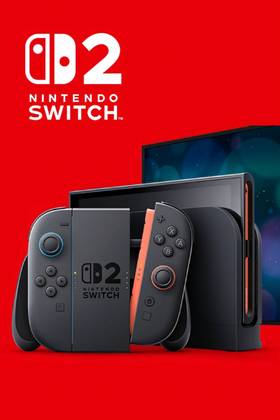
- Brand
- Nintendo
- Operating System
- Proprietary
- Storage
- 256GB internal / MicroSD
- Resolution
- 1080p (handheld) / 4K (docked)
- App Store
- Nintendo eShop
- Wi-Fi
- Yes