


Jump Links
The original Xbox was a powerhouse gaming console at the time of its release. Multiplatform games looked better on Microsoft's hardware than on the PlayStation 2 and GameCube, and it was home to some classic titles. Be it the Halo series or games that required a hard drive and were developed for the PC, such as Star Wars: Knights of the Old Republic and The Elder Scrolls 3: Morrowind.

Steam Deck: How To Use Xbox Cloud Gaming
The Steam Deck can run Xbox Cloud, but it takes some effort to make it work; here's how to set it up.
Updated February 25, 2025 by Michael Llewellyn: Decky Loader now requires a sudo password to bypass the Steam Deck's admin systems to install third-party apps. This guide is updated to include the steps for creating a new sudo password so you can install Decky and other third-party programs.
Before Running Emulators On Steam Deck

- Connect the Steam Deck to the main or ensure it's fully charged.
- An A2 microSD card to install EmuDeck and the games. Alternatively, if you only plan on using the Xbox emulator on a TV screen, you can connect an external HDD/SSD with a Docking system for the Steam Deck.
- Legal Xbox ISOs and BIOS.
Activate Developer Mode
- Press the Steam button.
- Open the System menu and switch on Developer Mode.

- Locate and open the new Developer menu and switch on CEF Debugging.
- Press the Steam Button, and select Power.
- Switch to Desktop Mode.
Download EmuDeck For The Steam Deck

- Press the Steam button below the left trackpad, highlight the Power option, and switch to Desktop Mode.
- Use a Bluetooth keyboard and mouse or a wired setup connected to a Steam Deck Dock.
- Download the EmuDeck program in Desktop Mode using a browser.
- Scroll down the page to locate the Download icon and double-click to launch the installer.
- Click on the Recommended Settings options and select Custom Install.
- Select the SD card image named Primary to install the emulator and the games.
- You can select individual emulators or all of them. The Xbox emulator is called Xemu, also select Retroarch and Emulation Station.
- Ensure you select Steam ROM Manager. This adds your emulated games with their artwork to your Steam Deck's library.
- On the next screen Switch on Auto Save.
- Skip ahead and select Finish to finalize the installation.
Transfer BIOS And ROMS To Their Correct Folders

The trickiest aspect of this guide is to ensure the correct BIOS files are placed into their folders. Without them, the Xemu emulator won't detect the games and they'll refuse to run.
Place The BIOS Into The Correct Folders
You will need to obtain the BIOS files from your Xbox, but the file names you will need and the root file locations are listed in the table below.
|
BIOS File Name |
Paste Folder Location |
|---|---|
|
mpcx_1.0.bin and Complex_4627.bin and Complex_4626v1.bin |
Primary>Emulation>BIOS |
|
xbox_hdd.qcow2 |
Primary>Emulation>Storage>Xemu |
Place The ISO Files Into The Correct Folders
The Xbox games are.iso files that must be placed in the correct folder so that the Steam ROM Manager can recognize them and add them to the Steam Deck library.
|
Xbox Games |
Paste Folder Location |
|---|---|
|
.iso |
Primary>Emulation>ROMs>Xbox |
Adding Xbox Games To The Steam Library

With all the BIOS and files in place, it's time to use the Steam ROM Manager to make your favorite Xbox games part of the Steam library.
- Reopen EmuDeck.
- On the left menu panel, click on Steam ROM Manager.
- Click Yes to close the Steam client and click on Next.
- Toggle Parsers off in the Parsers screen.
- Click and highlight the Xbox Xemu emulator, so it highlights in white.
- Select Add Games and the Steam ROM Manager will begin downloading and adding the cover art.
- Select Save to Steam after the covers have loaded.
- Wait for the “Done adding/removing entries” box and close the Steam ROM Manager.
- Exit EmuDeck and Return to Gaming Mode from your desktop background.
Fixing And Correcting Xbox Artwork In SRM

Fix Missing Artwork
There are occasions when the Steam ROM Manager may not locate the correct cover art for your Xbox games. Use the following steps to fix the cover art.
- Click on the Fix icon.
- Type the game's title in the fix Artwork and Title search bar.
- Select one of the game covers and click inside it.
- Click on Save and close.
Uploading Missing Artwork
You can also upload your own artwork if the Steam ROM Manager isn't detecting the covers.
- Open Desktop Mode.
- With a browser, type the game's name and click Images.
- Save the cover to the Pictures folder on the Steam Deck's Desktop Mode.
- With the covers saved, open the EmuDeck program.
- Run the Steam Rom Manager.
- Instead of Fix, click on Upload.
- Open the Pictures folder - where you saved your image - select the new cover image.
- Select Save and Close.

17 Xbox Games That Are Like Super Mario 3D World + Bowser’s Fury
There are plenty of legendary platformers on Xbox that could be just as great as Super Mario 3D World!
Playing Xbox Games On The Steam Deck
With BIOS, Iso files, and the covers in place you can now switch back to the Steam Deck's Gaming mode and play your Xbox titles from the library.
- In Gaming Mode, press the Steam button.
- Select Library.
- Open the Collections tab and click on the new Xbox window.
Certain Xbox games may experience compatibility issues with the Xemu emulator. Be sure to visit the Xemu website and refer to the compatibility page for an up-to-date list.
- Select the game and Play.
Emulation Station
Another way to run Xbox original games on the Steam Deck is by using the Emulation Station program instead. Use the following steps to play games with the Emulation Station:
- Press the Steam button and select Library.
- Open the Collections tab.
- Click on the Emulation square and open Emulation Station.
- Select the Xbox icon.
- Select and play your Xbox games with the emulator.
Install Decky Loader For The Steam Deck

Xbox games can be trickier to run compared to other retro titles, but thanks to the Decky Loader app and the Power Tools plugin you can get even better performance out of games like Knights of the Old Republic and Jade Empire. Use the following steps to get them installed on your Steam Deck.
- Optionally connect a keyboard and mouse for easier navigation.
- If you're in Gaming Mode, press the Steam button, Power, and Switch to Desktop Mode.
- In Desktop Mode open a browser. Browsers can be downloaded from the Discovery Store.
- In your preferred browser, navigate to the GitHub Decky Loader page.
- Locate the large Download icon and click it to start downloading.
- After the download has finished, double-click the launcher and select Recommended Install.
Create A Sudo Password
The Decky Loader program may require your sudo password. To set this up use the following steps:
- With the Steam Deck running in Desktop Mode click the Steam Deck icon from the bottom left of the taskbar.
- Type Konsole in the search bar and open the app.
- At the command, type "passwd".
- Then type your new memorable password in the first box and confirm it in the second.
- Run the Decky installer and type in your new password.
- Double-click the Decky Loader installer again to type in your new sudo password at the prompt to begin the installation.
- When the installation is complete, restart the Steam Deck in Gaming Mode.
Install Power Tools

Once the Decky Loader program is installed, you can install Power Tools through the Decky Loader application with the following instructions.
- With the Steam Deck in Gaming Mode, press the Quick Access Menu button beneath the right trackpad.
- Select the new plugin icon at the bottom of the QAM.
- Open the store icon at the top of the Decky Loader menu.
- In the Decky Store, type or move down the list alphabetically to find the Power Tools plugin and install it.
Power Tools Settings For Emulated Games
- Press the Steam button, click Library, and play an Xbox game from your Non-Steam Library.
- Open Decky Loader, and select the Power Tools menu.
- In Power Tools, Turn off SMTs.
- Adjust the Threads slider to 4.
- Press the QAM button and open the Performance menu by selecting the small battery icon.
- Enable Advance View.
- In the new dropdown, switch the Manual GPU Clock Control On.
- Increase GPU Clock Frequency to 1200.
- Next, choose Per Game Profile to save these settings for individual games.
Fixing Decky Loader After A Steam Deck Update

With major Steam Deck updates causing conflicts with third-party applications like Decky Loader, you should use the recommended fix below to get your apps and plugins back as they should be.
- If you are still in Gaming Mode, press the Steam button to access the Power options, and then switch to Desktop Mode.
- Open a browser in Desktop Mode.
- Open the Decky Loader GitHub page and click the Download icon.
- Select Execute and ensure you avoid selecting Open.
- Enter your sudo password on the prompt.
- If you haven't set up a sudo password yet, please proceed with the on-screen instructions to establish a new one. Choose a password that's easy to remember and note it down so you can install more apps in the future.
- After the installation, power off the Steam Deck and restart it in Gaming Mode.
- Pressing the QAM button will restore your Decky Loader app, settings, and plugins to their former state.
Games will perform better with these settings. There may be an occasional drop between transitional screens, but Steam Deck users will get improved performance overall. That's everything required to play and run Xbox games on the Steam Deck using the library or Emulation Station.
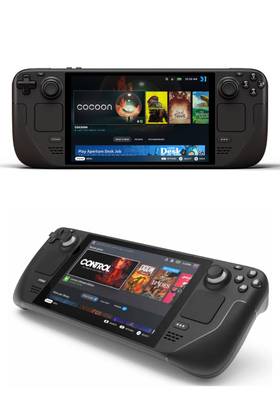
- Operating System
- SteamOS 3 (Arch-based)
- Storage
- 64GB eMMC / 256GB NVMe SSD / 512GB NVMe SSD / 1TB NVMe SSD
- Original Release Date
- February 25, 2022
- Weight
- Approx. 640 grams
- Dimensions
- 298mm x 117mm x 49mm