


The Steam Deck can run multiple programs using Decky Loader. It allows you to install unofficial programs like the NonSteamLauncher and add programs like the EA Games app through Steam Deck’s gaming mode.
Decky Loader also includes a Testing Mode that allows you to install programs that are still in the experimental phase. For those unfamiliar with the process, here's a rundown on the steps to install Decky Loader, how to access the Testing Store, and the method to execute Non-Steam launchers such as the EA App on the Steam Deck.

41 Best Steam Deck Games
Valve's Steam Deck offers PC gaming on the go. Here are the best Deck Verified games that can be played on the handheld system.
Updated March 3, 2025, by Michael Llewellyn: The Decky Loader program now requires a sudo password before it allows you to install it. As such, this guide has been updated to feature the steps for setting up a sudo password, allowing players to do so with ease. Creating a sudo password will also allow you to install other third-party programs to modify and improve your Steam Deck's versatility.
Install The Decky Loader On Steam Deck

The Decky Loader program provides you with a list of multiple apps to improve and customize the functionality of the Steam Deck. To use apps like the NonSteamLauncher for the EA app, you need to set up Deck Loader. Use the following steps to do so:
- Press the Steam button.
- Click on System and switch Developer Mode on.
- Move further down the left menu and switch CEF Debugging on.
- Then, select the Power option.
- Then select Switch to Desktop Mode.
- You can optionally use a keyboard and mouse with a dock to use the Steam Deck with a monitor. If you don’t have one, then bring up the built-in keyboard by pressing the Steam button and the X button together.
- Install and open Google Chrome.
- Use this link to install Decky Loader.
- Scroll down to find the Download icon on the Decky Loader Github page and click it.
Creating A Sudo Password
The Decky Loader installer will require your sudo password as a measure of security and protection for your SteamOS. Use the following steps to create a new password:
- In Desktop Mode on the Steam Deck, click the Steam Deck icon located at the bottom left of the taskbar.
- Type 'Konsole' in the search bar and open the app.
- Type 'passwd'
- Now, type your new password in the first box and then type it again in the second column to confirm it.
- Run the Decky installer and type in your new password.
- Double-click the Decky Loader installer and type in your sudo password at the prompt to begin the installation.
- Select the recommended install, wait for Decky Loader to finish the installation, and switch back to Gaming Mode.
Switch To Testing Mode
- Press the QAM button with three dots.
- Scroll down to the new plugin icon and open it.
- Click the Settings cogwheel.
- Under the General menu, change the Store Channel dropdown to switch Testing on.

- Back out of the General menu and click the Store icon to open the Decky Loader’s Testing Store, which will open with new apps.
- Move down the list to locate and install NonSteamLauncher.
Fix Missing NonSteamLaunchers From Decky Store
Users may experience an issue where the NonSteamLauncher plugin is missing from the Decky Store. In the event this doesn't get resolved by the developers, use the following steps to download and install the plugin via Desktop Mode. You must have Decky Loader installed first.
- Press the Steam button.
- Open the Power menu and switch to Desktop Mode.
- When Desktop Mode has booted up, open a browser and navigate to the NonSteamLaunchers Github page.
- Download the NSLplugin.desktop.
- Double-click the installer and select Execute.
- Enter your sudo password or create one using something you'll remember.
Ensure that you choose a memorable password, as it will be required to install additional third-party programs in Desktop Mode.
- Select update to latest release and click OK.
- After the installation, switch back to Gaming Mode.
Installing The EA App For The Steam Deck

After the NonSteamLauncher app has been installed, it’s time to set up and install the EA App so it runs on the Steam Deck.
- Press the QAM button.
- Reopen the Decky Loader program.
- Click the NonSteamLaunchers app.
- Under Game Scanner, switch Auto Scan Games on.
- Then, select Game Launchers.
- Toggle the EA App on.

- Ensure Separate Launcher Folders is on and select Install.

Launch The EA App
- Press the Steam button.
- Select Library.
- Press the R1 button to access the Non-Steam Library.
- Locate and tap on the EA App and select Play.
- Sign in with your login details and launch the App.
How To Fix Decky Loader After The Steam Deck Update

Like many third-party applications, compatibility issues may arise when the Steam Deck receives significant updates that introduce new features. Unfortunately, this includes Decky Loader, as there's an issue where it disappears from the Quick Access Menu in Gaming Mode. Thankfully, we can restore your Decky Loader program, your plugins, and your settings.
- Press the Steam button to access the Power menu.
- In the Power menu, select Switch to Desktop Mode.
- In Desktop Mode, open a browser and navigate to the Decky Loader download page.
- Click the Download icon.
- After the installation, double-click the Decky installer and select Execute.
- At the prompt, enter your sudo password or follow the steps to create a new one.
- After the installation has finished, power off the Steam Deck and restart in Gaming Mode.
- In Gaming Mode, press the Quick Access Menu button to locate your recovered Decky Loader app.
Installed games will also be added to the Non-Steam Library. That’s everything needed to run EA Games like Battlefield on the Steam Deck via the app.
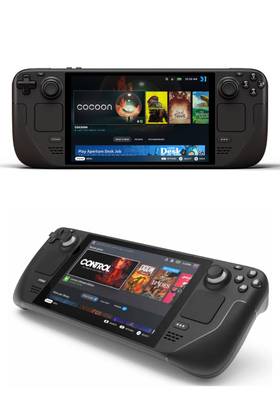
- Operating System
- SteamOS 3 (Arch-based)
- Storage
- 64GB eMMC / 256GB NVMe SSD / 512GB NVMe SSD / 1TB NVMe SSD
- Original Release Date
- February 25, 2022
- Original MSRP (USD)
- $399–$649
- Brand
- Steam (Valve)
- VR Support
- Technically possible, but not designed or optimized for it.