


GOG, also known as Good Old Games, is a video game platform similar to the Steam Store and has an extensive library of classic games. Unsurprisingly, it isn't natively available on the Steam Deck, but with Decky Loader, you can run the GOG Galaxy launcher in the Steam Deck's Gaming Mode and install your favorite GOG titles.
The Decky Loader program has a Testing store that allows users to install the NonSteamLauncher and run unofficial gaming platforms like GOG. Here's how to install the Decky Loader and run GOG Galaxy games on the Steam Deck.

Steam Deck - How To Create & Restore Automatic Saves/Snapshots
Here's to create and recover snapshots of exited games on the Steam Deck.
Updated April 2, 2025, by Michael Llewellyn: The Decky Loader program now requires a sudo password in order for it to be installed. This works as an admin password to ensure you don't install any harmful programs on your Steam Deck. As such, this guide has been updated to outline the steps that must be followed when creating a sudo password for Decky Loader and other useful third-party apps.
How To Install The Decky Loader On The Steam Deck

The Decky Loader program allows users to customize the functionality of the Steam Deck. This includes installing the NonSteamLaunchers app to run gaming stores like GOG and install your favorite classic and modern titles. The following steps can be used to install Decky Loader and its Testing store:
- Press the Steam button and access the System menu.
- Enable Developer Mode and switch on CEF Debugging.
- Restart the Steam Deck.
- With the Steam Deck on, press the Steam button.
- Highlight Power and switch to Desktop Mode.
- Open the Discover Store and install Google Chrome.
Google Chrome is required to run the NonSteamLaunchers through the Decky Loader.
- Double-click the Decky Loader icon in the Downloads folder, choose the Recommended Install, and follow the next steps to set up your sudo password.
How To Create A Sudo Password
- In Desktop Mode, click the Steam Deck icon at the bottom left of the taskbar.
- Type Konsole in the search bar and open the app.
- Type 'passwd'
- Then, type your new memorable password in the first box and confirm it in the second.
- Run the Decky installer and type in your new password.
- Launch the installer again and type in your sudo password at the prompt to begin the installation.
- After the installation, open your Chrome browser.
- Open the GOG website with Google Chrome and sign in with your GOG details.
- Switch back to Gaming Mode.
How To Access The Testing Store
- Press the QAM button (the three-dotted button underneath the right trackpad).
- Open the new Decky Loader plugin icon.
- Tap on the Settings cogwheel in Decky Loader.

- Change the Store Channel to Testing in the General Menu.
- Close the Setting screen and reopen the Decky Loader to access the Store icon next to the Settings cogwheel.

- Scroll down the Testing Store page and Install the NonSteamLauncer.
How To Fix Missing NonSteamLaunchers From Decky Store
There may be a dispute preventing the NonSteamLauncher from appearing on the Decky Store. Unfortunately, this means that it's no longer installable from the Decky Loader. In the meantime, and if the above steps don't work, use the following steps to fix NonSteamLauncher via desktop:
Only use these steps after installing Decky Loader.
- Press the Steam button.
- Open the Power menu and switch to Desktop Mode.
- In Desktop Mode, open a browser and navigate to NonSteamLaunchers Github page.
- UnderAssets, download NSLplugin.desktop.
- Double-click the installer and select Execute.
- Enter your sudo password or create one using a memorable password.
- Select update to latest release and click OK.
- After the installation has finished, switch back to Gaming Mode.

Steam Deck: How To Install The Amazon Games Launcher
For gamers looking to get Amazon Games running on the Steam Deck, this guide outlines all the steps that need to be followed.
How To Install GOG Galaxy On The Steam Deck

With NonSteamLaunchers installed via Decky Loader, you can now install and run the GOG launcher and install your purchased games. The following steps can be used to add GOG to the Steam Deck's library:
- Press the QAM button to access the Decky Loader menu.
- Open the new NonSteamLaunchers plugin.
- Toggle on Auto Scan Games.
- Open the Game Launchers tab.

- Enable GOG Galaxy.

- Enable Separate Launcher Folders and click Install.
- After the installation, press the Steam button and open the Library.
- Open the Non-Steam library tab with the R1 button.
- Locate the GOG Store window and tap Play to launch it (it may require two attempts).
- Sign in with your login details.
There is a bug preventing some GOG users from signing in with the Steam Deck in Gaming Mode. Signing in to GOG using Google Chrome in Desktop Mode should resolve the issue. If that doesn't work, try resetting your password using the "Forgot My Password" prompt.
- Click on your Owned Games section on the left side menu and install them.
- The Installed GOG games will be added to the Non-Steam library. However, it's better to launch the games after opening GOG Galaxy.
- Open your Installed Games menu and select your game.
- Click the Play icon.

- When the Play icon turns gray, click the X in the top right corner to close the window and access the game's launch screen.
- After the game has launched, access the game's settings menu to ensure that you have switched from the keyboard to the gamepad/controller set up to play with the Steam Deck.

Steam Deck - How To Record Gameplay Videos
Learn how to record videos and clips on the Steam Deck in this comprehensive guide.
How To Fix Decky Loader After The Steam Deck Update

Some of the most important updates for the Steam Deck may interfere with third-party programs like Decky Loader. Here are the steps that must be followed to restore your Decky Loader program, its settings, and your plugins (this will also work for any future issues that may arise from updates):
- Press the Steam button.
- Open the Power menu.
- Click on Switch to Desktop Mode.
- Open a browser and navigate to the Decky Loader GitHub page.
- Double-click the Decky Loader installer after the download has finished.
- Ensure you click on "Excute" and not "Open."
- The installer will launch and prompt you to enter a sudo password. If you haven't set up a sudo password yet, you can create one now, and you should make it memorable or write it down and keep it in a safe place.
Choose a memorable sudo password, as changing it requires resetting the Steam Deck to factory settings.
- After the installation, power off the Steam Deck.
- Restart the Steam Deck in Gaming Mode, and your Decky Loader program will be restored with its settings and plugins intact.
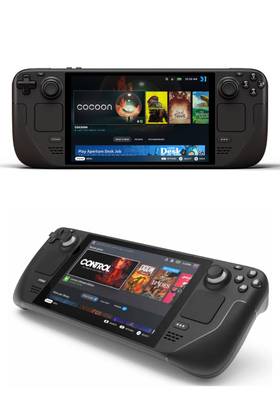
- Storage
- 64GB eMMC / 256GB NVMe SSD / 512GB NVMe SSD / 1TB NVMe SSD
- VR Support
- Technically possible, but not designed or optimized for it.
- Weight
- Approx. 640 grams
- Dimensions
- 298mm x 117mm x 49mm
- Processor
- Zen 2 4c/8t, 2.4-3.5GHz (up to 448 GFlops FP32)
- Brand
- Steam (Valve)