


Summary
- Nintendo's Virtual Game Cards can be hidden from one's account.ž
- Assuming it's not already installed, a hidden game can only be accessed by logging into one's Nintendo Account.
- The option to hide VGCs appears to serve both privacy-focused and practical purposes.
Nintendo's Virtual Game Cards can be hidden from the user's content library. This privacy-focused feature even works for software beyond Switch games.
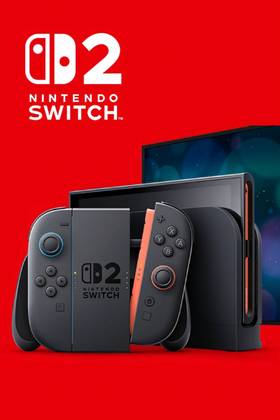
Virtual Game Cards are one of the big changes that Nintendo made to digital Switch games in preparation for the launch of the Switch 2. In short, VGCs are treated as physical cartridges, meaning they need to be "ejected" from a device before they can be shared on another Switch—or, starting June 5, the Switch 2. The main benefit of this content model is that VGCs can easily be shared between devices, or within a Nintendo Account family group.

Nintendo Switch Game Sharing Is Now More Difficult
Ahead of the release of the Switch 2, Nintendo rolls out out some big changes that make game sharing on its consoles significantly more difficult.
A month after announcing Virtual Game Cards, Nintendo officially launched them as part of the newest Switch operating system update, which became available for download globally on April 29. Identified by version number 20.0.0, this release introduces full-fledged VGC support, whose arrival prompted some users to notice a feature Nintendo has largely overlooked in its prior explanations: the ability to hide any compatible card from the content library.
How To Hide Nintendo Virtual Game Cards
- Go to the Nintendo VGC Portal.
- Click the downward-facing arrow below any game you want to hide.
- Select Options > Hide and confirm the decision.
- To review filtered VGCs and/or unhide them, select "View Hidden Virtual Game Cards" at the bottom of the VGC Portal.
This de-facto filtering option can be found over at the main Virtual Game Cards portal, hidden behind the Options menu of every individual license. A Switch game hidden from one's account can no longer be found on any console to which that account is connected—so long as it's not already installed on the device. The only way to download a hidden Virtual Game Card is to open the "Redownload Software" screen, then click or tap the big "Can't Find Software" button at the bottom. From there, the console will prompt the user to log into their Nintendo Account, navigate to the VGC portal, open its hidden list, and install the filtered item from there.
The newly added feature doubles as a sort of rudimentary parental control panel. Granted, Nintendo already offers the Switch Parental Controls app, which was previously confirmed to be working with its upcoming console. The ability to hide Virtual Game Cards hence seems to serve privacy-focused and practical purposes, allowing users to either hide parts of their massive Switch catalog away from prying eyes, or streamline their sizable library by filtering out items they don't need to access often or ever.
Despite their name suggesting otherwise, Virtual Game Cards appear to support more than just games. Nearly every individual eShop listing gets its own VGC out of the box, allowing users to hide everything from games and DLC to apps, such as YouTube.
- Brand
- Nintendo
- Operating System
- Proprietary
- Storage
- 256GB internal / MicroSD
- Resolution
- 1080p (handheld) / 4K (docked)
- App Store
- Nintendo eShop
- Wi-Fi
- Yes