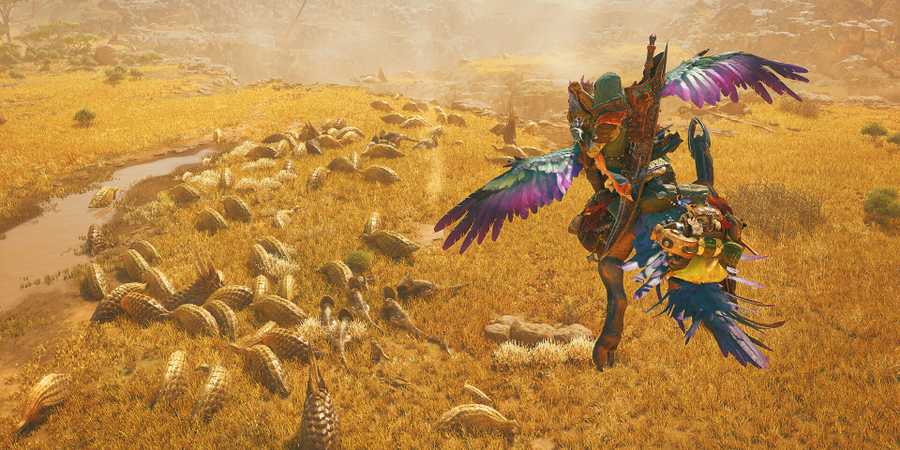
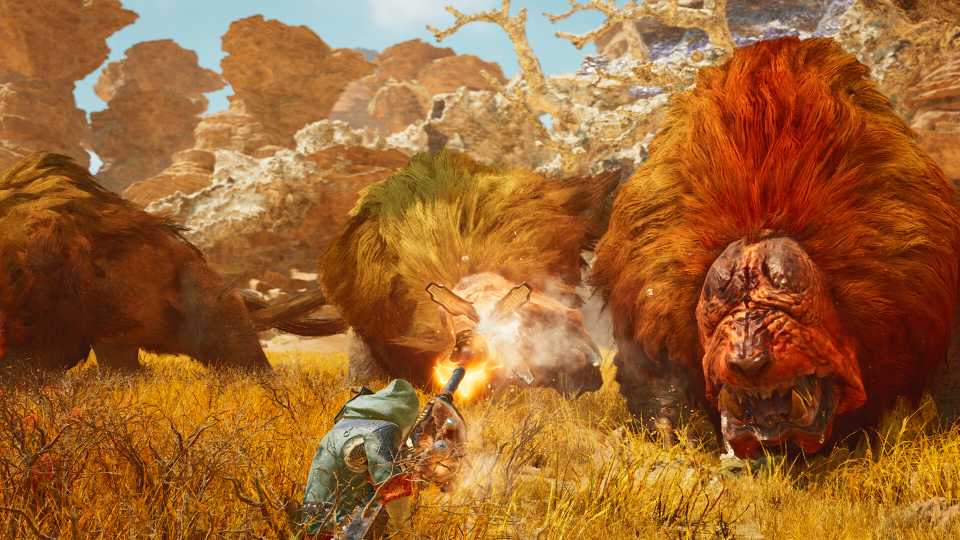
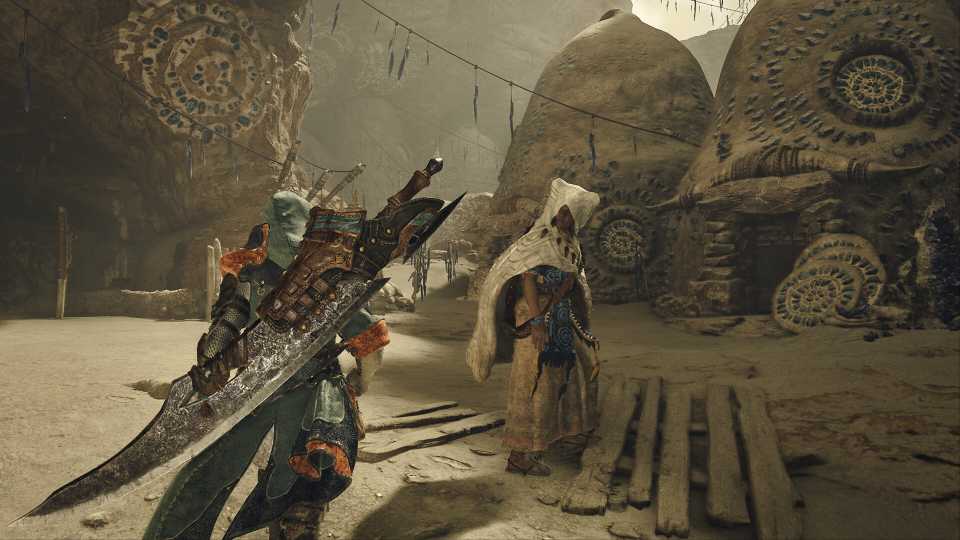
The co-op system in Monster Hunter Wilds lets you join up with other hunters or have them lend a hand as you explore the wilds and take on leviathan beasts. If you're connected to the internet when you boot up the game, you can join an online lobby with up to 99 players to chat with other Hunters, send them friend requests, or even form a squad.
While the community features in the game are pretty cool, there will occasionally be that one random troll constantly spamming stickers in the chat. Needless to say, that can get pretty annoying when you're trying to take down an Ajarakan with your friends. In this guide, we'll explain how you can mute those players, disable voice chat, or even block them if things get out of hand in Monster Hunter Wilds.

Monster Hunter Wilds: How to Increase HR (Hunter Rank)
To increase Hunter Rank, Monster Hunter Players need to partake in a variety of in-game activities, like Hunts, Quests, and collecting materials.
How to Mute Players and Chat in Monster Hunter Wilds

If you're tired of seeing the same sticker spam from a single user in Monster Hunter Wilds while playing in a lobby, here's how to mute them quickly.
- Open the Main Menu and navigate to the Communication Tab.
- Go to Chat Log to see recent messages.
- Select a message sent by the player you want to mute.
- Select Mute Messages and confirm by selecting Yes.
This will temporarily mute the player's messages, so you won't see the texts even if they keep spamming the lobby. To unmute the player, repeat the same steps and select Unmute Messages.
How to Block Players in Monster Hunter Wilds

If muting a player isn't enough, you can also block them in Monster Hunter Wilds. Here are the steps:
- Open the Main Menu and go to the Communication Tab.
- Select Member List to view all players in your current lobby.
- Scroll through the list and select the player you want to block.
- Select Block and hit Yes.
Once blocked, the player won't be able to communicate with you or join your hunts. This also blocks all Hunter IDs associated with the user.
You can unblock the player from your Block List in the Member List window.
How to Turn Off Voice Chat in Monster Hunter Wilds

Monster Hunter Wilds also has a built-in Voice Chat to make it easier for you to communicate with other Hunters in the lobby. While you may not use it much if you're playing the game solo, online play becomes a lot easier with Voice Chat. By default, Voice chat is set to Push-To-Talk. But you can also deactivate it if you'd rather not use this feature at all.
- Open the Main Menu and switch to the System Section.
- Go to Options and switch to Audio.
- Find the Voice Chat option and set it to Disable.
You can also adjust the volume level of Voice Chat from the Audio menu.
Monster Hunter Wilds gives you plenty of options to manage your online experience while playing. If a player is being too annoying, you can mute them easily or even block them so that you can focus on what really matters - hunting monsters with your trusty squad members.




-
 OpenCritic Reviews
- Top Critic Avg: 89 /100 Critics Rec: 95%