


PlayStation 5 owners having problems with their controllers should consider resetting them. Resetting a PlayStation 5 controller can get it working again by restoring it to its default settings.
While resetting a PS5 controller is a good option when faced with frequent disconnections, many owners are unsure how to go about resetting said controller. Fortunately, this guide will cover everything there is to know about resetting a PlayStation 5 controller and other useful tidbits.
How to Reset PlayStation 5 Controller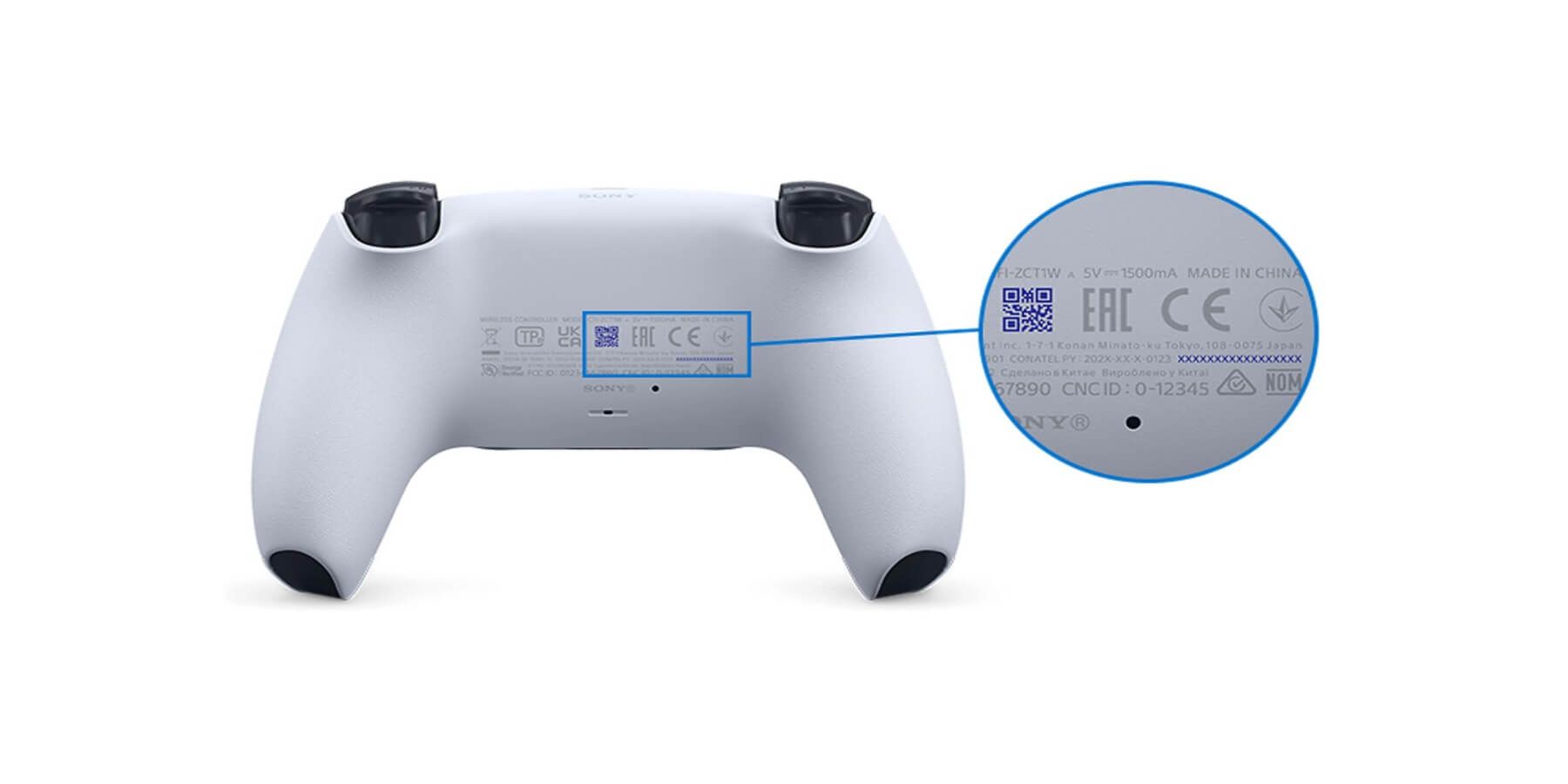
To restore a PlayStation 5 controller to its default settings via hard reset, follow these simple steps:
- Disconnect the PlayStation 5 controller from the console.
- Turn off the PlayStation 5 console.
- Look for a small hole on the back of the PlayStation 5 controller.
- Use a paper clip or pointed object to press the button in the hole for five seconds.
- Switch on the PlayStation 5 console and resync the controller using a USB-C cable.
- Press the PS button on the controller.
Consider using the original USB-C cable provided with the PlayStation 5 while resyncing the controller to avoid hassles. If one is not available, you can use one commonly used to charge Android devices.
How to Soft Reset PlayStation 5 Controller

PlayStation 5 owners also have the option to soft reset their controller when faced with issues like loss of pairing or input lag. To soft reset a PS5 controller, follow these steps:
- Press the PS button on the PlayStation 5 controller.
- Select Accessories from the Control Center.
- Select the PS5 controller > Turn Off.
- The PS5 controller will turn off, after which pressing the PS button will switch it on again.
- Now, connect the controller to the PlayStation 5 console.
If soft resetting a PS5 controller does not solve the issue(s) being faced, consider hard resetting the controller.
Consider Updating the PS5 Controller Firmware
Instead of soft or hard resetting the PS5 controller, updating the firmware could solve any and all problems. To update the PS5 controller firmware, follow these steps:
- Go to Settings.
- Select System > System Software.
- Select System Software Update and Settings.
- Select Update System Software.
Other Reasons for Resetting a PlayStation Controller
Apart from the reasons mentioned above, here are a couple of other reasons why resetting a PS5 controller would be a good idea:
- There are weird glitches while using the PS5 controller.
- The PS5 controller stops responding.
- The PS5 controller is not pairing with another device, i.e., PC, Smartphone, etc.