


If there's one thing gamers love, it's dinosaur-focused games. From the high-octane action of Exoprimal to the gorgeous yet eerie vistas of Turok, there are plenty of options to choose from. If you're looking for a survival game where you can ride these magnificent beasts, ARK: Survival Ascended is the one for you.
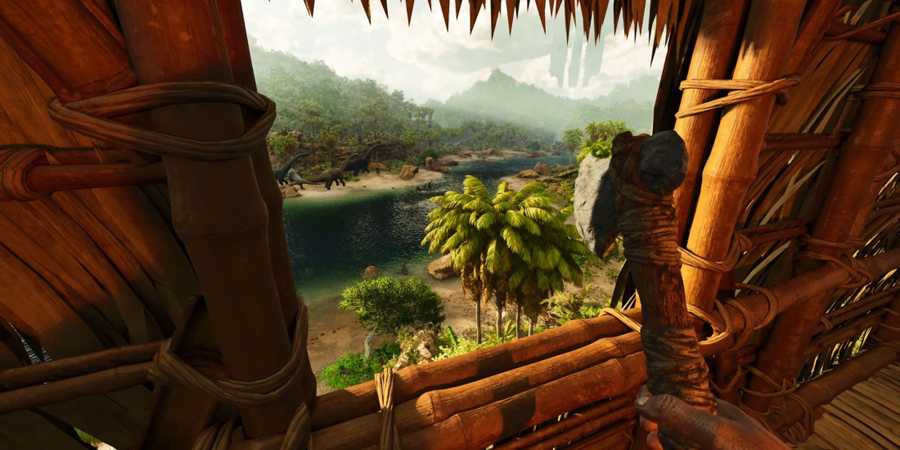
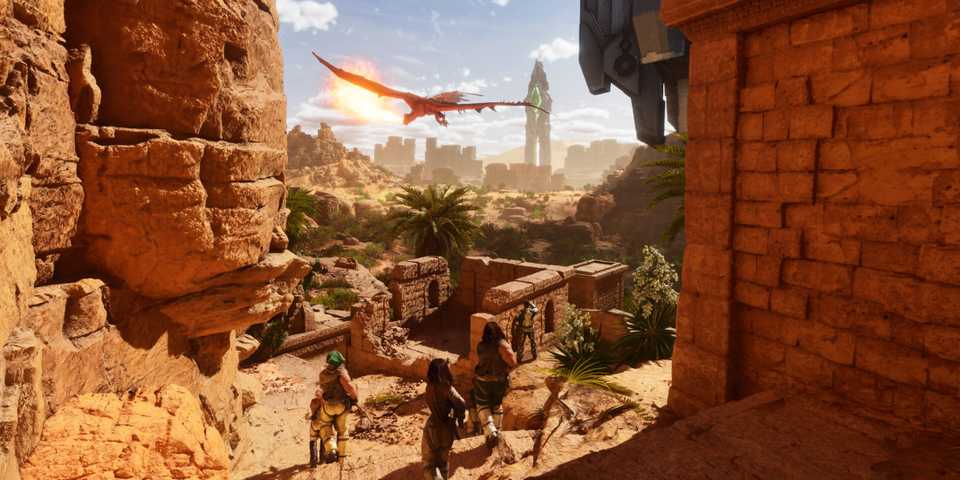
ARK: Survival Ascended is an Unreal Engine 5 remaster of the already successful ARK: Survival Evolved. While a fresh coat of paint may be everything it needed, not all players have been satisfied. Many prefer the original release, one reason being the remaster's performance issues. If you are one such player, then the guide below is for you. Explore the graphics settings and learn about the additional improvements you can make to enhance your ARK experience.

ARK: Survival Ascended - How to Tame a Fasolasuchus
The method for taming a Fasolasuchus in ARK: Survival Ascended is unlike any other. Follow these steps to tame one of your own.
Recommended Settings For ARK: Survival Ascended

ARK: Survival Ascended offers a plethora of graphical options that allow players to achieve decent performance. While the game may not look as impressive after applying the settings below, many PC players still prefer a higher framerate, especially when trying to reach the coveted 60 FPS mark.
|
Graphical Option |
Recommended Settings |
|---|---|
|
Resolution |
Native |
|
Window Mode |
Fullscreen |
|
Graphics Preset |
Custom |
|
Resolution Scale |
100 |
|
Advanced Graphics |
Medium |
|
Anti-Aliasing |
Low |
|
View Distance |
Low |
|
Textures |
High |
|
Post Processing |
Medium |
|
General Shadows |
High |
|
Global Illumination Quality |
High |
|
Effects Quality |
Medium |
|
Foliage Quality |
Medium |
|
Max Frame Rate |
Off |
|
Motion Blur |
Off |
|
Light Bloom |
On |
|
Light Shafts |
On |
|
Low-Light Enhancement |
Off |
|
Enable Foliage & Fluid Interaction |
Off |
|
Foilage Interaction Distance Multiplier |
0.01 |
|
Foilage Interaction Distance Limit |
0.5 |
|
Foilage Interaction Quality Limit |
0.5 |
|
Enable Footsteps Particles |
Off |
|
Enable Footsteps Decals |
Off |
|
Disable HLOD |
Off |
|
GUI 3D Widget Quality |
0.6 |
Some graphical options are exclusive to Nvidia GPUs, meaning Intel Arc and AMD Radeon GPU owners will miss out on these features.
|
Graphical Option |
Recommended Settings |
|---|---|
|
Nvidia DLSS |
On |
|
Frame Generation |
On |
|
Super Resolution |
Quality |
|
Nvidia Reflex Low Latency |
On |
DLSS can only be used by RTX 2000 series or above, and Frame Generation by the RTX 4000 series.
If you can't select the Frame Generation option, even if you meet the GPU requirement, follow these steps to enable the feature:
- Close the game and return to the desktop.
- Click on the search icon in the taskbar.
- Enter "Graphics Options" and click on it.
- Turn on "Hardware-accelerated GPU scheduling."
- Restart your computer.
Now open the game again, and you should be able to turn on Frame Generation.

How to Tame an Oasisaur in ARK: Survival Ascended
Wondering how you can easily tame an Oasisaur in ARK: Survival Ascended? Here is how you can pull it off.
Additional Improvements for ARK: Survival Ascended

If you want to improve your gaming experience further, there are additional changes you can make.
Use All Cores When Playing The Game
ARK: Survival Ascended isn't very well optimized; one of the reasons for this is its inefficient use of CPU cores. Thankfully, there's a solution. You can command the game to use all available cores on the CPU, which should provide a significant performance boost, especially when your game is being CPU-limited. Here's how you can do it:
- Head to your Steam Library.
- Right-click on ARK: Survival Ascended and select "Properties."
- In the Launch Options section, write "-USEALLAVAILABLECORES."
Improve Performance With Command Lines
When in the game, press the "~" button (the button below the Escape key) to open the console at the bottom of your screen. Enter the following commands to get a performance boost not available via the normal graphics settings menu:
- r.VolumetricCloud 0 - This command disables most of the clouds. The impact on the visual presentation of the game is significant, but so is the performance boost. You usually won't be looking at the sky anyway.
- R.VolumetricFog 0 - This command disables the fog effect in the game. Removing it offers a slight FPS boost and also makes the game look clearer. You should consider turning it back on by replacing "0" with "1" whenever you reach the snow biome, as the fog enhances the chilly environment and helps with the presentation of the game.
You'll need to enter these commands every time you play the game.

How to Increase Max Dino Level in ARK: Survival Ascended
To help you achieve the most comfortable gameplay, here's a step-by-step guide on how to increase max dino level in ARK: Survival Ascended.
Improve Performance by tweaking the INI File
You can further improve performance by tweaking the Engine.ini file, which should be located in
[SystemSettings]
r.DynamicGlobalIlluminationMethod=0
r.Lumen.Reflections.Allow=0
r.Nanite.MaxPixelsPerEdge=2
r.ContactShadows=1
r.Shadow.CSM.MaxCascades=0
r.Water.SingleLayer.Reflection=1
r.MaterialQualityLevel=0
Save the file and make sure it's set to read-only. Now open the game, and you should see a significant performance boost.
The above commands disable the Lumen lighting technology, which is extremely taxing on the hardware. You should instantly notice a major boost in performance, even more so than when you disabled clouds. Shadows-related commands don't disable shadows entirely, but they do reduce their quality and range. Water-related commands offer a small performance boost by degrading the quality of water. There's also a command that can completely disable water rendering, but that step might be a bit too extreme.
Skip Intro Videos
There's hardly a gamer out there who enjoys sitting through the intro logo screens. All players want to dive into the action as quickly as possible. Fortunately, you can achieve this in ARK: Survival Ascended with a mod. Head over to NexusMods and download the "No-Intro Videos Fix" mod created by Gametism. Extract the zip file and copy the folder. Then, paste it into your game's directory.
If you're unsure where that is, head to your Steam Library, right-click on the game, click on properties, select the Installed Files tab, and click on Browse. The folder that opens up is your game directory.




 OpenCritic Reviews
- Released
- October 26, 2023
- ESRB
- T For Teen Due To Blood, Crude Humor, Game Experience May Change During Online Play, Use of Alcohol, Violence
- Developer(s)
- Studio Wildcard
- Publisher(s)
- Studio Wildcard





WHERE TO PLAY


- Platform(s)
- PC, PS5, Xbox Series X, Xbox Series S
- Genre(s)
- Survival, Open-World
