


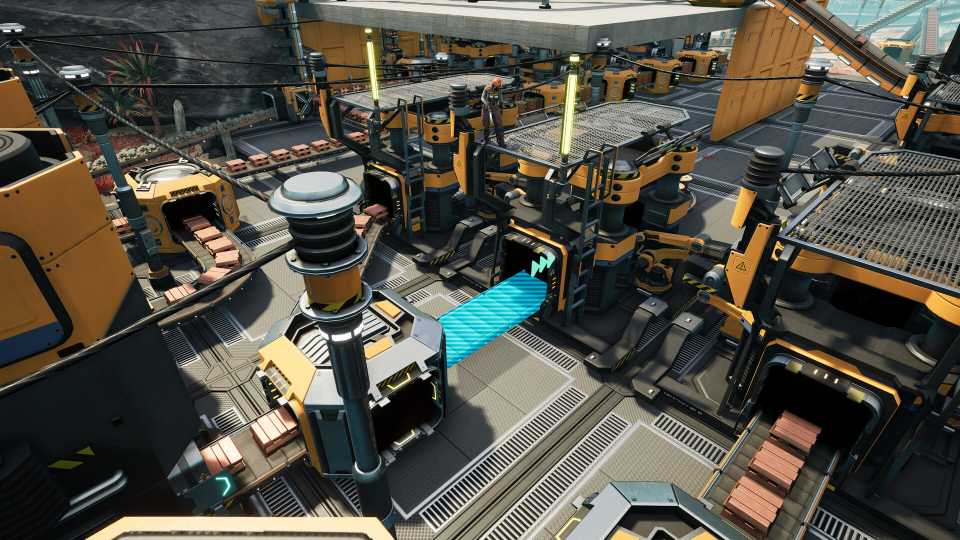
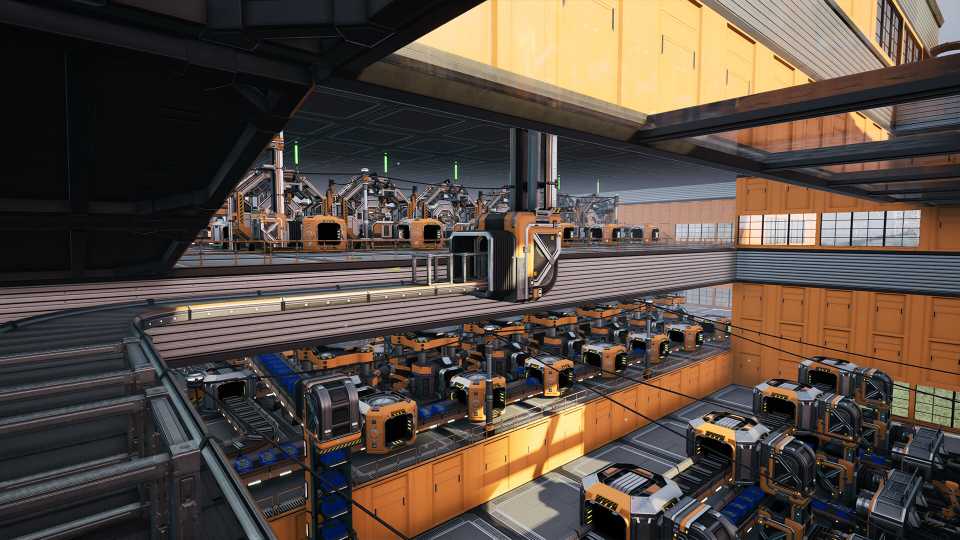
In Satisfactory, creating a super-efficient factory is only the first step. It’s when you start to tinker with the layout of your factory and experiment with different colors that the game’s customization aspect really starts to kick in. Not only can you change the entire tone of your factory with the single click of a button, but you can also mix and match different patterns to make your factory stand out.
Figuring out how to change the colors of your buildings can be tricky at first, since the game doesn’t explain it all too well. That’s why we’ve compiled this guide to help lay out everything there’s to know about how customization works in Satisfactory.

Satisfactory: How to Get Polymer Resin
Polymer Resin is an important mid-game ingredient in Satisfactory that Pioneers can use to produce other essential resources. Here's how to obtain it.
How to Unlock the Customizer

When you load up a new world in a starting area in Satisfactory, you won’t be able to customize the color of your building right out of the gate. To do that, you’ll need to unlock the Customizer. You’ll have to play through the game, clearing objectives until you reach Tier 2 after completing the onboarding process and upgrading your Hub Terminal.
The Customizer upgrade for your Build Gun is in Milestone 4, called the Resource Sink Bonus Program. Here are the resources you’ll need to unlock this Milestone:
- 400x Concrete
- 500x Wire
- 200x Iron Rod
- 200x Iron Plate
While the resource requirement is a bit high, the resources themselves aren’t that difficult to obtain. At this point of the game, you should already have Miners set up on Iron, Copper, and Limestone nodes to give you the necessary crafting ingredients for them. Once you unlock Milestone 4, your Build Gun will be automatically upgraded so that you can use the Customizer with it.
How to Customize Buildings in Satisfactory (Change Color)

Now that you’ve unlocked the Customizer, it’s time to use it to change the color of your building around the factory. Here are the steps:
- Press X on your keyboard to bring up the Customizer menu and then head into the Color option on the top left corner.
- You’ll see swatches categorized into Default, Custom, and Regular. On the default row, hover your mouse over the FICSIT Factory Swatch.
- Click on the Edit option at the bottom.
- This will bring up a new window with two color palettes that you can adjust according to your taste. Satisfactory uses an HSB color format for the sliders, so you can change it to any color you want or even use a hexidecimal code.
- Once you’re done, press Select Color and exit the Customizer.
Alternatively, you can hit Q to open the Build menu and click on the Customizer tab above. You’ll notice that this will change the color of every factory and related machinery around you to the same color. So, if you like consistency in your design choices or want to go for a specific theme, this is a good option.
You can also change the color of your Project Assembly, Foundations, Concrete Structure, and Pipeline the same way! Simply hover your mouse over the option, and you’ll see the option to edit the color to your liking.
However, you might want to have different colors and variety for the walls of your buildings. Thankfully, there’s a solution to that in Satisfactory. If you want to be more specific about where you want to put each color, follow the steps below:
- Bring up the Customizer menu using X again and head into the Color option.
- This time, click on Custom Swatch i nstead, in the second row.
- Choose the color you want using the sliders and press Select Color.
- Now, any surface you point at with your crosshair will change to the color you selected on the Custom Swatch. Click the Left Mouse Button to apply the color.
Doing this will also save the Swatch in the Customizer menu. If you want to change all the walls you made with the Swatch, click on Edit and adjust to another color, and it will automatically update all the walls for you. The next time you invite a friend to your server, you can show off your factory in a whole new color!
How to Add Patterns in Satisfactory

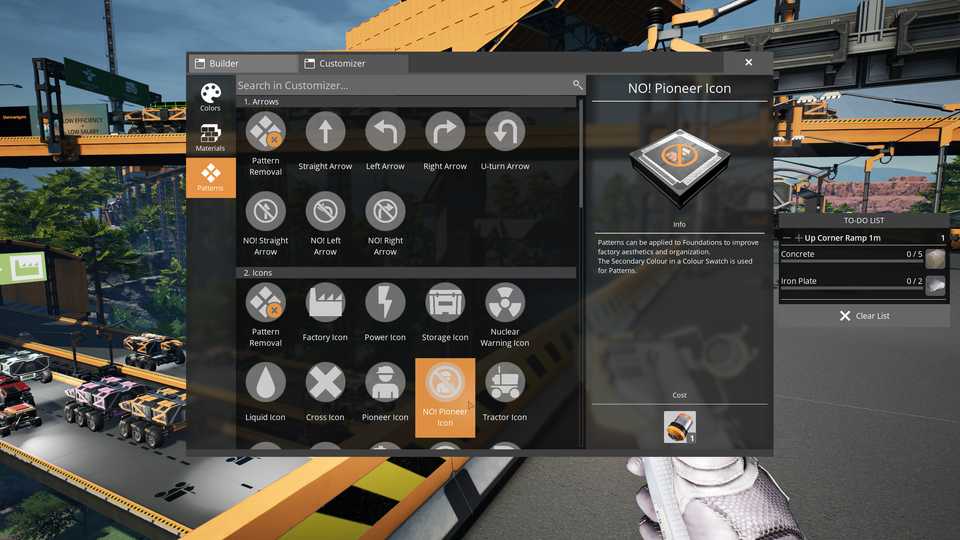
In Satisfactory, the customization doesn’t just stop at colors; you can also add several patterns and symbols/arrows to your Foundations. The method is very similar, with the only exception being that you have to unlock the patterns from the AWESOME Shop. Once you’ve unlocked the patterns you want to add, follow the steps below:
- Bring up the Customizer menu and click on the Patterns button on the left. You’ll be able to see all the patterns you’ve bought and unlocked, categorized based on their type.
- Simply click on the pattern you want to use, and it will appear wherever you point with your Build Gun.
- Select the wall/foundation you want to use the pattern on and click the Left Mouse Button to apply it. You can also rotate the pattern with the Middle Mouse Button.
While Satisfactory isn’t exactly liberal when it comes to choosing colors, you can still work around it once you get used to how everything works in the Customizer menu. It takes a bit of work, but it’s not as complicated as making Smart Plating for the first time. But once you reach Milestone 4 in Tier 2, you can have fun experimenting with all the different colors available in the game to make your factory look exactly the way you want.




-
 OpenCritic Reviews
- Top Critic Avg: 91 /100 Critics Rec: 100%
- Released
- September 10, 2024
- ESRB
- Everyone 10+ / Fantasy Violence
- Developer(s)
- Coffee Stain Studios
- Publisher(s)
- Coffee Stain Publishing











WHERE TO PLAY





- Engine
- Unreal Engine 5
- Multiplayer
- Online Co-Op
- Platform(s)
- PC, PlayStation 5, Xbox Series X, Xbox Series S
- Genre(s)
- Simulation, Sandbox, Base Building, Open-World, Management
- How Long To Beat
- 105 Hours
