


The Nintendo Switch 2 is designed to provide a seamless transition from the original Switch. It features a similar interface and offers a data transfer option, allowing users to easily transfer their data and games to the Nintendo Switch 2. Fortunately, even though it has a few new features, the experience of adding new friends is mostly similar to how the original Switch implemented it. Before attempting to add new friends, you must update the Switch 2 and link your Nintendo Account to the console. You can optionally link your account with the official Nintendo Switch app via a compatible smartphone.

How to Get Zelda Switch 2 Upgrade Packs (BotW and TotK)
Both Breath of the Wild and Tears of the Kingdom have been given Switch 2 upgrade packs. Here's how players can get them.
How To Add Friends On The Switch 2
There are a few methods you can use to add friends and allow friends to add you on the Switch 2. You'll need to select your Nintendo profile picture on the top left side of the screen to open your page and select Add Friend to view the following features:
Received Friend Requests
If you've been sent any friend requests after sending out your code or getting added by players you met in online games like Mario Kart World, you'll find them in this section to accept or deny them.
Search With Friend Code
Under the Profile section, underneath your profile photo, you'll see your Friend Code starting with SW-, followed by 12 numbers. In turn, you can share this unique code with your friends to make it easy for them to find and add you on their Switch 2.
Search for Users You've Played With
This feature is self-explanatory. It lets you send a friend request to players you've encountered in online games, even if you've never played them before.
Search For Local Players
This feature allows you to add nearby players as friends by sending them a symbol: a heart, a diamond, a club, or a spade. Once they accept your invitation by clicking on the corresponding symbol, you will both be added as friends on the Switch 2.
Adding Friends With The Switch App
You can add friends by using the Nintendo Switch App on a smartphone. Instead of reading out your Friend Code, you can get them to scan your QR code, or you can scan theirs. To access the QR code, click the three dots on the Friend Code section and select Display QR Code.

Changing Your Friend Code On The Switch 2

If you feel that your privacy has been compromised, or you've sent your code to too many people, you can resissue yourself a brand new Friend Code, and you don't have to worry about it affecting the friends you've already added. Use the following steps to reissue a new Friend Code on the Switch 2:
- Open your profile page.
- Then select User Settings.
- Friend Settings.
- On this screen, you can manage your online status and switch off Friend Requests if you want.
You will not be able to request another Friend Code for 30 days.
- To change your Friend Code, select Reissue Friend Code and confirm it after the 30-day warning.
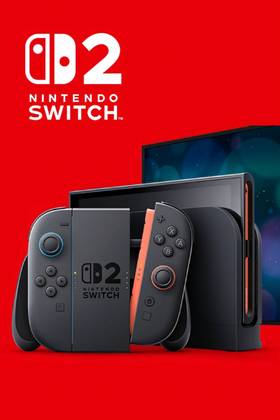
- Brand
- Nintendo
- Operating System
- Proprietary
- Storage
- 256GB internal / MicroSD
- Resolution
- 1080p (handheld) / 4K (docked)
- App Store
- Nintendo eShop
- Wi-Fi
- Yes