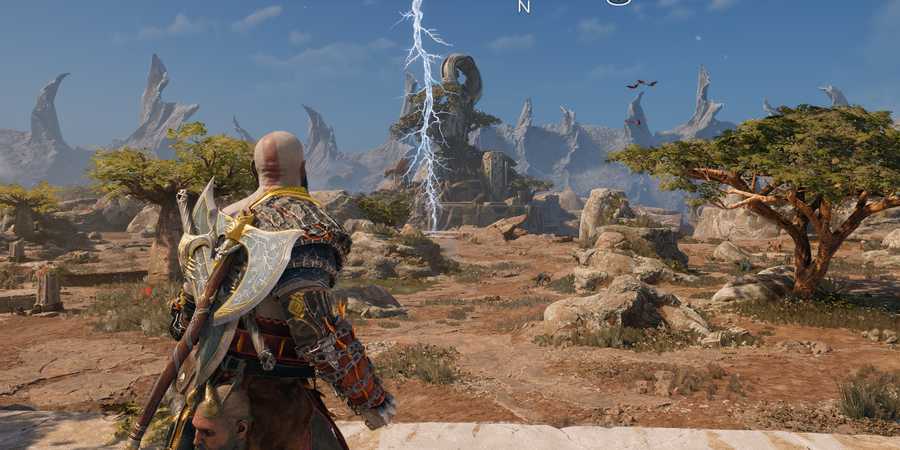
One of the best games of 2022 has finally arrived in PC stores, and yes, it's God of War Ragnarok. While PS5 players have already enjoyed this mind-blowing sequel, PC players are just now diving into its world and experiencing it for the first time. For those looking to make the most out of their first playthrough, there are several tweaks that can be made regarding the visual settings.
Below is an outline of the best display and graphics settings for God of War Ragnarok. These recommendations aim to deliver a smooth, consistent framerate without sacrificing too much visual quality.

Optimized PC Graphics Settings for Frostpunk 2
Learn how to optimize Frostpunk 2 on PC with the best graphics settings to prevent FPS drops without sacrificing too much visual quality.
Recommended Display Settings For God of War Ragnarok

The Display setting in God of War Ragnarok might not seem important, but that would be the wrong assumption. Choosing the correct option here is essential, as an incorrect setting can result in a blurry game. This section also covers crucial features like upscaling and frame generation technology.
|
Graphical Option |
Description |
Recommended Settings |
|---|---|---|
|
Display Mode |
This setting determines whether the game uses part of the screen or the entire display. Use Fullscreen for the most immersive experience. |
Fullscreen |
|
Resolution |
This setting determines the resolution of the game. Choose Native as going below will make the game extremely blurry. |
Native |
|
VSync |
This setting eliminates screen tearing but limits FPS to your monitor's refresh rate and introduces slight input lag. Enable it if you have a 144Hz or higher monitor. For 60Hz monitors, you can also turn it on if you're comfortable with a 60 FPS cap. |
On |
|
Aspect Ratio |
This setting defines the ratio between horizontal and vertical pixels. Select your monitor's native aspect ratio. |
Native |
|
Frame Rate Limit |
This setting limits your game's framerate to the chosen value. Turn it off to maximize GPU performance, or turn it on for more consistent and stable FPS. |
Personal Choice |
|
Latency Reduction |
This setting uses latency-reduction technology to make the game feel more responsive, though it may introduce slight stuttering. |
Off |
|
Frame Gen |
This setting uses frame generation technology to create artifical frames. It's only available on newer-gen GPUs. Use it only if you're in need of extra frames, as it can introduce ghosting effects. |
Off |
|
Scaling Method |
This setting determines which upscaling technology is used to enhance the game's visuals. Nvidia users should select DLSS, while others should opt for FSR. |
DLSS/FSR |
|
Scaling Quality |
This setting controls how low the game's actual render resolution will be before being upscaled. Players at 1080p should select Native, while those using higher resolutions can opt for Quality or even Balanced. |
Native |

God of War Ragnarok: PC Pre-Order Guide
Discover everything you need to know about pre-ordering God of War Ragnarok for PC, including purchase options, bonuses, and edition details.
Recommended Graphics Settings For God of War Ragnarok

This section is where you'll achieve the most significant framerate improvements, but it will also have the greatest impact on the game's visuals. Several settings here are particularly demanding on hardware, offering only minimal visual enhancements in return.
|
Graphical Option |
Description |
Recommended Settings |
|---|---|---|
|
Textures |
This setting determines the quality of the textures. It has no impact on performance as long as your GPU's VRAM limit isn't reached. |
High |
|
Models |
This setting determines the quality of geometry detail on various objects. |
High |
|
Anisotropic Filtering |
This setting determines the quality of texture filtering in the game, which makes textures look good when viewed from an unusual angle. |
Ultra |
|
Lighting |
This setting determines the quality of lighting in the game. |
High |
|
Shadows |
This setting controls the resolution and accuracy of the game's shadows. Going to Low gives a major performance boost but makes shadows look terrible. Only select Low if you are really desperate for more frames. |
Medium/Low |
|
Reflections |
This setting determines the resolution and clarity of reflections on various surfaces in the game, such as water, marble, and more. |
Medium |
|
Atmospherics |
This setting determines the quality of fog in the game. |
Medium |
|
Ambient Occlusion |
This setting controls the quality of ambient occlusion, which enhances the realism of small objects in the game. |
Ultra |
|
Tessellation |
This setting determines the quality of geometric smoothing in the game. |
High |
Other Minor Visual Settings
There are a few more visual settings to be aware of. It's best to turn off Film Grain and Motion Blur; however, you might consider enabling Motion Blur if you're experiencing a low framerate, like 30 FPS, as it can make the game feel less laggy. You can also disable Reduced Flashing if the game's flashing effects are bothersome to you.
Scroll down in the Graphics & Camera tab, and you will find a Motion Reduction setting. Here, disable both Ambient Camera Shake and Camera Shake if you get motion sickness from the game.

God of War Ragnarok

- Released
- November 9, 2022



WHERE TO PLAY





- Developer(s)
- Santa Monica Studio
- Platform(s)
- PC, PlayStation 4, PlayStation 5