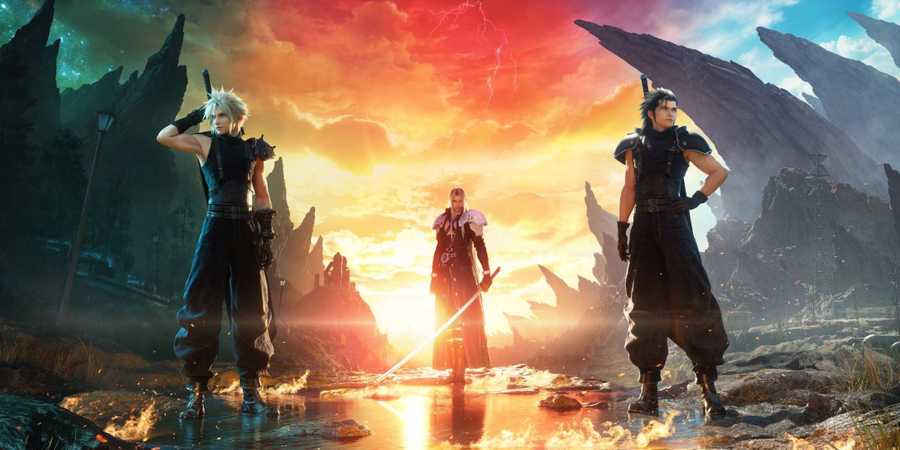
Final Fantasy 7 Rebirth is a much grander game than its predecessor, Final Fantasy 7 Remake. There are a ton of gorgeous vistas, towns, and cities to explore outside Midgar, and if you want to capture a special moment from Cloud's posse, it'll be worth knowing how to use the photo mode in FF7 Rebirth and take photos with it.
It's worth noting that the challenges in Final Fantasy 7 Rebirth that revolve around snapping photos, like the Scenic Spots, don't actually require players to take a picture using photo mode. You simply need to go to the designated area, stand there, and just open photo mode.
Updated on January 23, 2025: This post was originally made for just the PS5 version of Final Fantasy 7 Rebirth. However, now that the game is on PC, there are other control methods we must go over in this guide. We've updated the post with Xbox controls.

Final Fantasy 7 Rebirth: Classic vs Active Combat Style (What's the Difference?)
Final Fantasy 7 Rebirth gives players an option to choose between two combat modes, but which one is the best?
How to Use Photo Mode in FF7 Rebirth

Final Fantasy 7 Rebirth players can easily open up Photo Mode by pressing the Options button on the DualSense controller to enter the Menu and then hit the Square button.
If you're using an Xbox controller on a PC, open the menu with the 'Menu' button and press X. If you're using a keyboard, hit 'Esc' and then G.
Once you hit that button, whatever is happening on-screen at the time will freeze in place, allowing you to move the camera around to position yourself for the best snapshots.
There are a couple of options for you to tinker with to ensure you utilize Photo Mode properly. For example, you can hold the L2 and R2 buttons (LB and RB on Xbox) to zoom in and out of the scene; you can hide any characters on the field, like Cloud, by tapping the Square button (on PS5) or X button (Xbox) --you can press it again to bring the party back. This is a great option for anyone wanting to maybe take a picture of a landscape or a monster without the party being in the way.
You can also use the up and down buttons on the directional pad for further options, which include:
FF7 Rebirth Photo Mode Settings
- Filters
- Frames
- Camera Positioning
- Angle
- Tilt
- Exposure
At the start of FF7 Rebirth, you'll have access to the following filters, but as you progress through the story, Cloud will unlock some more:
FF7 Rebirth Filters
- Soft
- Antique Photo
- Warm Afternoon
- Tundra
- Black and White
- Sunset
- Bucolic
- Retro Animation
- Cinematic
- Melancholy
- Celestial
- Viridity
- Royalty
- Amber
Taking a Picture in FF7 Rebirth's Photo Mode
Once you have everything lined up, you can hide the buttons in the photo mode display and then hit the Create button (on PS5) to take a screenshot. It'll be saved to your PS5's media gallery, where you can check it out later and share it with friends or transfer it to a flash drive.
If you're on Steam, the screenshot can be taken with F12. You can check out any recordings by going under the View menu and choosing the screenshot option at the bottom of the list.










- Developer(s)
- Square Enix
- Publisher(s)
- Square Enix
- Franchise
- Final Fantasy
- Platform(s)
- PlayStation 5, PC
- Genre(s)
- RPG