Black Ops 6 players have been in for a wild ride with 2024's mainline entry, taking players back to the 90s with fast-action Multiplayer, a gripping Campaign, high-action Zombies, and a game-changing integration with Warzone. With each passing season, players also have even more to enjoy.
While Black Ops 6 and Warzone are receiving content with each seasonal launch, some players may unfortunately run into an issue that prevents them from playing the game altogether. Recently, an issue that is stopping players from getting into Call of Duty, most notably on PC, has been circulating. This issue causes the game to get stuck on loading the message of the day. Here are some potential solutions to the issue.

Best Meta Loadouts For COD Black Ops 6 Season 4
Season 4 of Black Ops 6 brings with it two fan-favourite weapons and a whole host of nerfs and buffs. Here are the best loadouts to dominate the game.
Method #1: Force Close Call of Duty HQ

The first workaround for this issue is to simply restart Call of Duty HQ on the platform you are playing on. However, doing so will require players to force close the game, as they will be unable to restart the app in-game through the start menu. To force close Call of Duty HQ, try the following methods:
- For Steam, open up Steam and, under Call of Duty HQ, select the “Stop” option.
- For Battle.net and the Xbox App, open Task Manager, right-click on Call of Duty, and select “End Task.”
- For all platforms, try spamming the ESC key. Doing so may bring up the option to Quit to Desktop. From here, select “Yes.”
If successful, open Call of Duty again and, hopefully, the issue will be resolved. It's not a perfect fix by any means, as it may not permanently resolve the issue. However, there are some additional solutions players can try.
If you are unable to switch windows to access either Task Manager or Steam, try spamming Alt+Enter together. Doing so will set Call of Duty to Windowed Mode, allowing users to minimize Call of Duty. Pressing Alt+Esc can also minimize Call of Duty.
Method #2: Verifying the Integrity of Game Files
On to potential solutions for fixing the issue now. Players can try running a scan and repair or verifying the integrity of their game files on PC through Steam, Battle.net, and the Xbox App. Some users have reported that this has solved the issue for them, but it will typically need to be done before launching Call of Duty and Black Ops 6 to potentially avoid being stuck on loading the Message of the Day. Here is a rundown of how to do so on each platform:
Steam
- Open the Steam Library and right-click on Call of Duty.
- Select "Properties."
- Go to "Installed Files" and click "Verify Integrity of Game Files."
Battle.net
- Head to Call of Duty HQ.
- Click on Options and select "Scan and Repair."
- Click "Begin Scan" and wait for the process to complete.
Xbox App
- Launch the Xbox App.
- Right-click on Call of Duty and select "Manage."
- Click on "Files," then select "Verify and Repair."

How To Open The Overlook Safe Room In CoD Warzone
The Overlook has arrived in Verdansk in Warzone, and holds its very own secret. Here’s how to open The Overlook’s safe room in Warzone.
Method #3: Force Windows Mode & Spam The Space Bar

While definitely an unconventional method, the following steps can actually work for those currently stuck on the "Loading Message of the Day" screen in Black Ops 6 and Warzone. To try this fix without closing the game, follow these steps:
- Launch Call of Duty.
- As soon as the game begins to launch, immediately press Alt + Enter to force Windowed Mode.
- While the initial loading screen is playing, repeatedly press the Space Bar.
This method was discovered by Reddit user Dear_Archer7711 and appears to help players bypass the error and successfully load into Warzone. It will also work for Black Ops 6, as both games are launched through Call of Duty HQ. However, it should be worth noting that this only acts as a workaround for the issue and doesn't fix the root of the problem.
Other General Fixes

Run Call of Duty as Administrator
- Press the Windows key and search for Call of Duty.
- Instead of clicking "Open," select "Run as Administrator."
- Then launch Call of Duty as normal through your chosen platform.
Launch Call of Duty in Safe Mode
Battle.net Method:
- Head to "Settings" (the cogwheel next to "Play.")
- Navigate to "Game Settings."
- Click the drop-down on "Call of Duty" to reveal more options.
- Check "Additional command line arguments."
- Type -safe in the provided box.
- Launch Call of Duty.
Steam Method:
- Open Steam and go to "Library."
- Right-click on "Call of Duty" and select "Properties."
- Under "General", go to "Launch Options."
- Type -safe in the provided box.
- Launch Call of Duty.
Run -DX11 Launch Option
Battle.net Method:
- Head to "Settings" (the cogwheel next to "Play.")
- Navigate to "Game Settings."
- Click the drop-down on "Call of Duty" to reveal more options.
- Check "Additional command line arguments."
- Type -dx11 in the provided box.
- Launch Call of Duty.
Steam Method:
- Open Steam and go to "Library."
- Right-click on "Call of Duty" and select "Properties."
- Under "General", go to "Launch Options."
- Type -dx11 in the provided box.
- Launch Call of Duty.
Another general fix that players can try is ensuring their graphics drivers are fully up-to-date. As a last resort, try deleting the Call of Duty folder and uninstalling and reinstalling the game entirely. However, only attempt this if the issue persists and all other troubleshooting methods have been exhausted.
-
Checkbox: control the expandable behavior of the extra infoRating block community and brand ratings Image

Call of Duty: Black Ops 6
Display card tags widget Display card system widgetDisplay card community and brand rating widgetDisplay card open critics widget Display card main info widget 9 /10Display card main info widget end Display card media widget start Display card media widget end
- Released
- October 25, 2024
WHERE TO PLAY
SUBSCRIPTIONDIGITALPHYSICAL- Developer(s)
- Treyarch, Raven Software
- Franchise
- Call of Duty
- Genre(s)
- FPS
- Platform(s)
- PlayStation 5, PlayStation 4, Xbox Series X, Xbox Series S, Xbox One, PC
- OpenCritic Rating
- Strong
-
Checkbox: control the expandable behavior of the extra infoRating block community and brand ratings Image
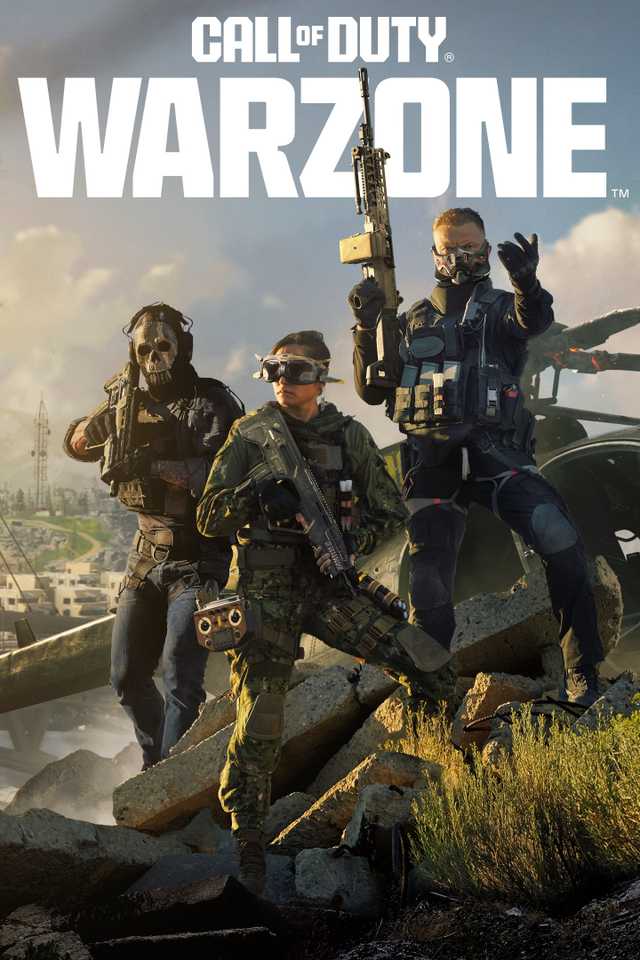
Call of Duty: Warzone
Display card tags widget Display card system widgetDisplay card community and brand rating widgetDisplay card open critics widget Display card main info widget
9 /10Display card main info widget end Display card media widget start Display card media widget end- Released
- March 10, 2020
WHERE TO PLAY
SUBSCRIPTIONDIGITAL- Developer(s)
- Infinity Ward, Raven Software
- Franchise
- Call of Duty
- Genre(s)
- First-Person Shooter, Battle Royale
- Platform(s)
- Xbox One, PC, PS4, PS5, Xbox Series X, Xbox Series S
- OpenCritic Rating
- Strong